Profiler#
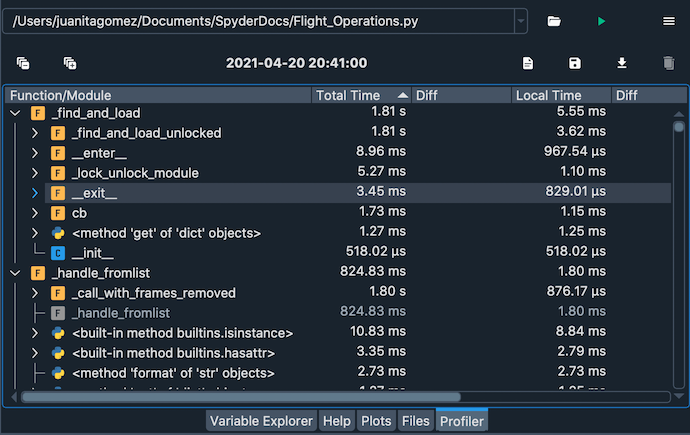
The Profiler pane recursively determines the run time and number of calls for every function and method invoked in a file, breaking down each procedure into its smallest individual units. This allows you to identify the bottlenecks in your code, points you toward the exact lines most critical for optimization, and measures the performance delta after followup changes.
Running the Profiler#
You can run profiling for the current Editor file, cell, selection or line by clicking the corresponding item in the Run menu (i.e. Profile file, Profile cell, etc), or the respective icon in Spyder’s main toolbar.
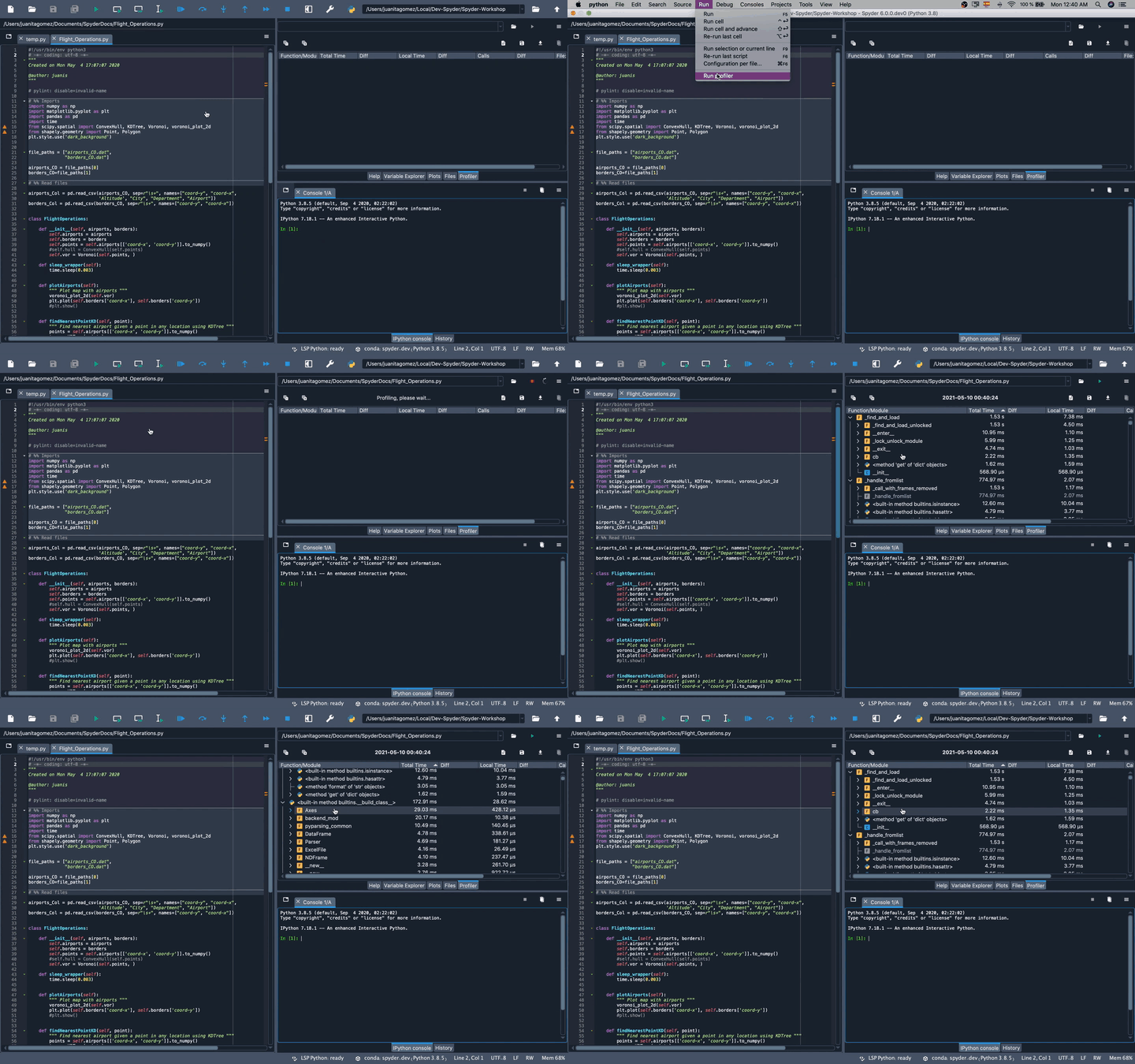
To cancel an in-progress run and see the results so far, click the Stop button on the Profiler pane toolbar. If profiling fails, such as due to a bug in your code, the error output will be shown in the IPython Console.
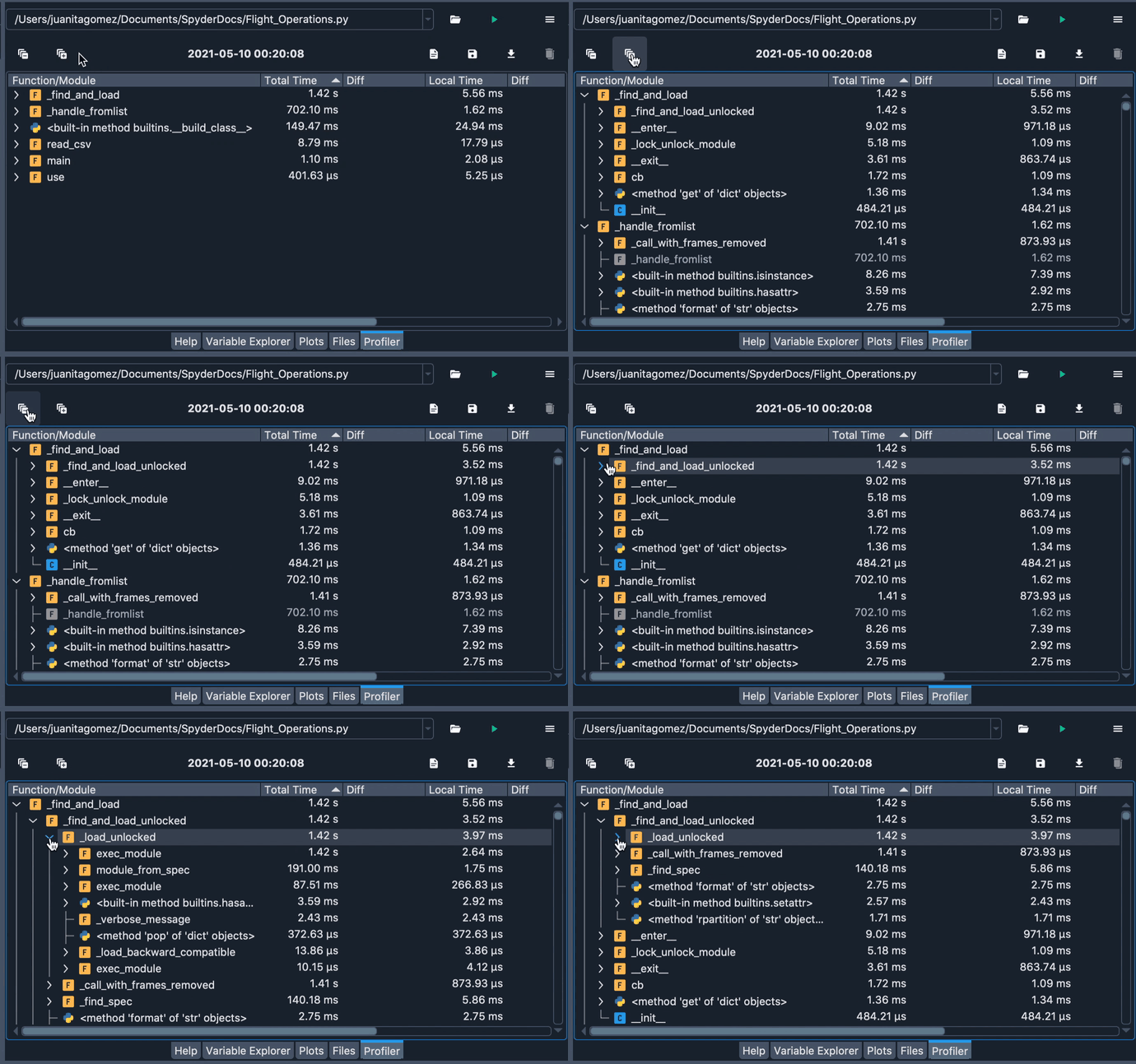
Results are broken down by function/method/statement, with each sub-element listed hierarchically under the top-level item that called them. To expand or collapse all items by one level of the call stack, click the + or - buttons in the left of the pane toolbar.
Right-click an item in the Profiler and select Go to definition to be taken to the file and line in the Editor where it was called.
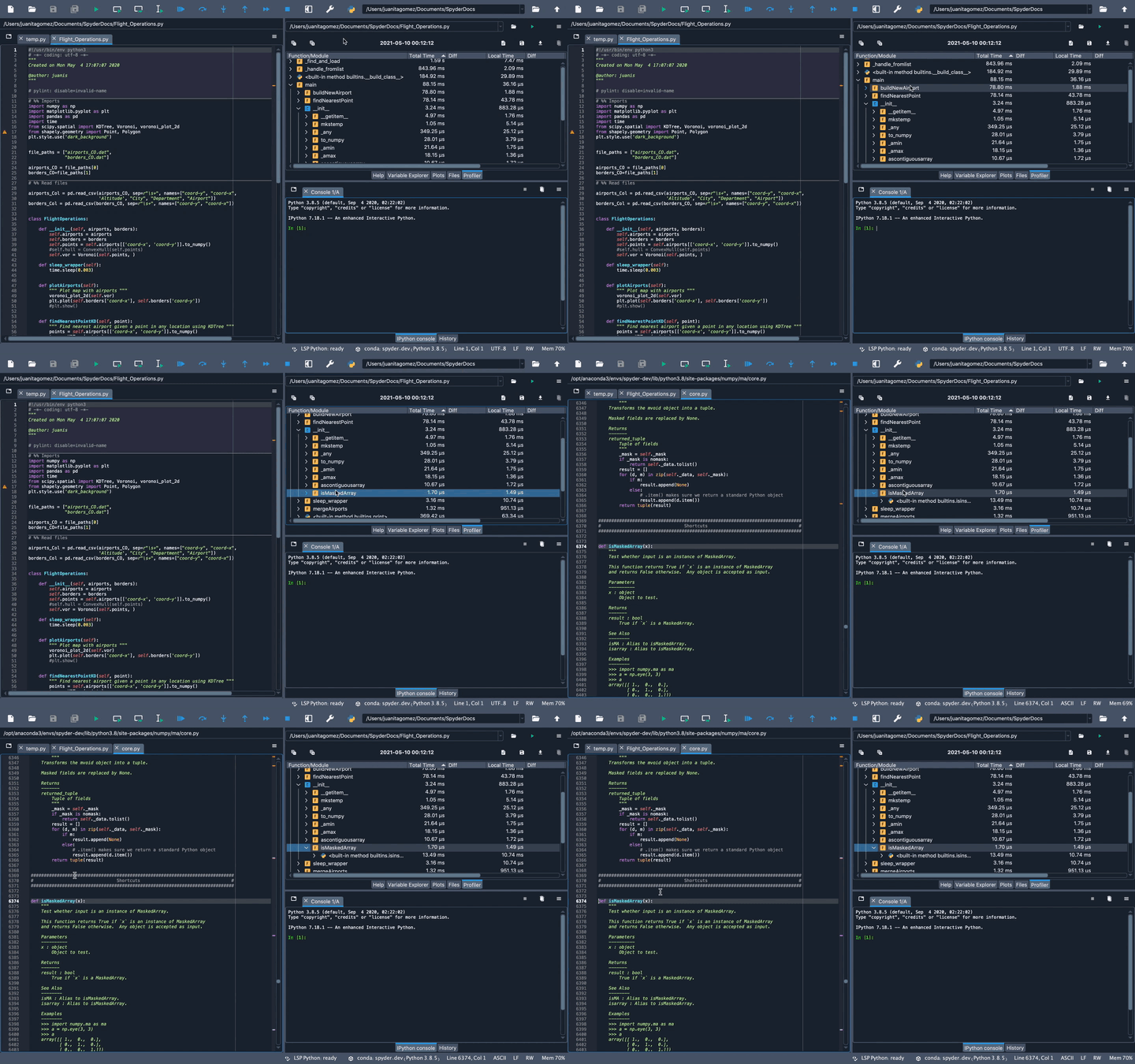
You can display all functions regardless of level in the call stack, sorted by Local Time (the time spent inside just that function), using the Show items with large local time toolbar button.
To filter calls to third-party packages outside your own code, use the Hide calls to external libraries button.
Right-click any function to show every other function that calls or is called by it. You can restore the default view with the Show functions or modules called by the root item toolbar button.
To find a specific function, click the Search button and type its name into the field that is displayed at the bottom of the pane.
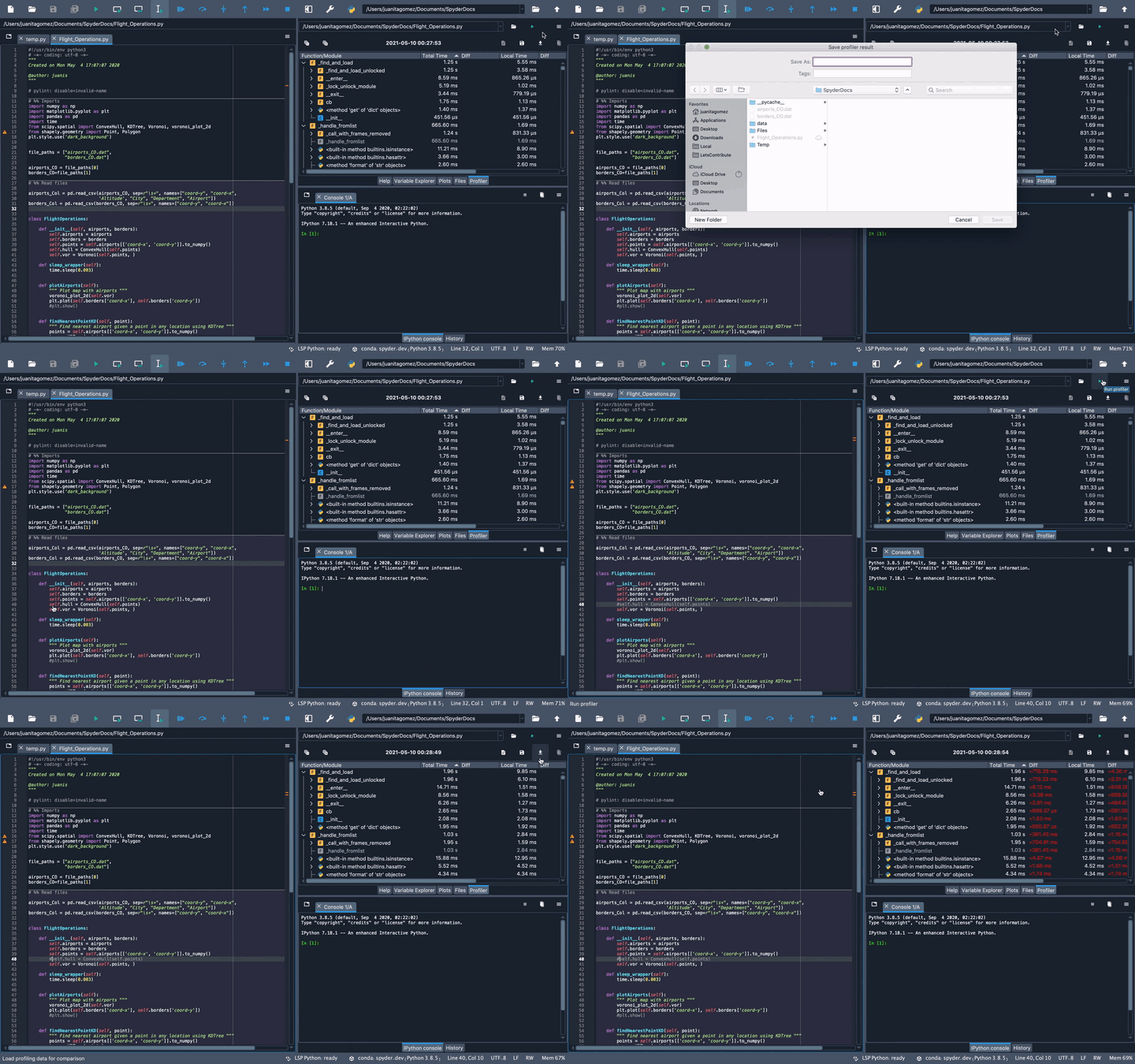
Finally, you can save the data for a given run to disk as a file with the .prof extension using the Save profiling data button.
This can be loaded to compare with a previous run of the same file using the Load data button.
To remove the loaded data, click the Clear comparison button.
Interpreting the results#
Results are broken down by function/method/statement, with each sub-element listed hierarchically under the top-level item that called them.
Total Time is that taken by the specified item and every function “underneath” (i.e. called by) it, while Local Time only counts the time spent in the particular callable object’s own scope.
The Calls column displays the total number of times the specified object was called at that level inside its parent calling function (or within the __main__ scope, if a top-level object).
Finally, the numbers in the Diff columns for each of the three appear if a comparison is loaded, and indicate the deltas between each measurement, with red (+) numbers meaning the current version is slower than the previous comparison, and green (-) numbers meaning it is faster.
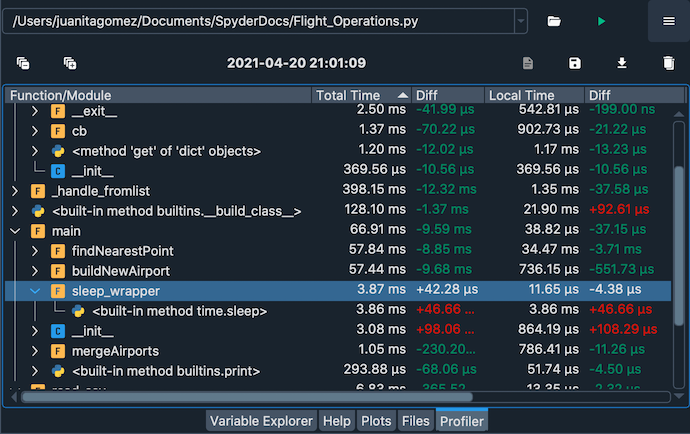
For example, suppose you ran the Profiler on a file calling a function sleep_wrapper() which took a total of 10 ms to run, 9 ms of which was spent in the time.sleep() function it called in turn.
Therefore, if time.sleep() called nothing else itself, its Total Time and Local Time would both be identical, at 9 ms.
Meanwhile, Total Time for sleep_wrapper() would be 10 ms, but Local Time only 1 ms as the rest was spent inside the time.sleep() function it called.
Line profiler plugin#
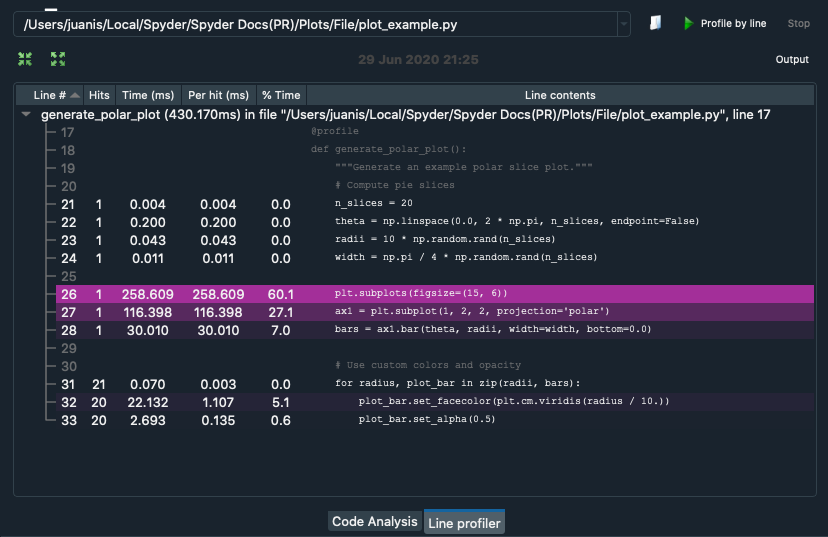
There is an additional plugin that you can install to enable other types of profiling in Spyder. Spyder Line Profiler allows you to benchmark each line of your code individually. To learn more, visit the spyder-line-profiler git repository.