
Help#
You can use the Help pane to find, render and display rich documentation for any object with a docstring, including modules, classes, functions and methods. This allows you to access documentation easily directly from Spyder, without having to interrupt your workflow.
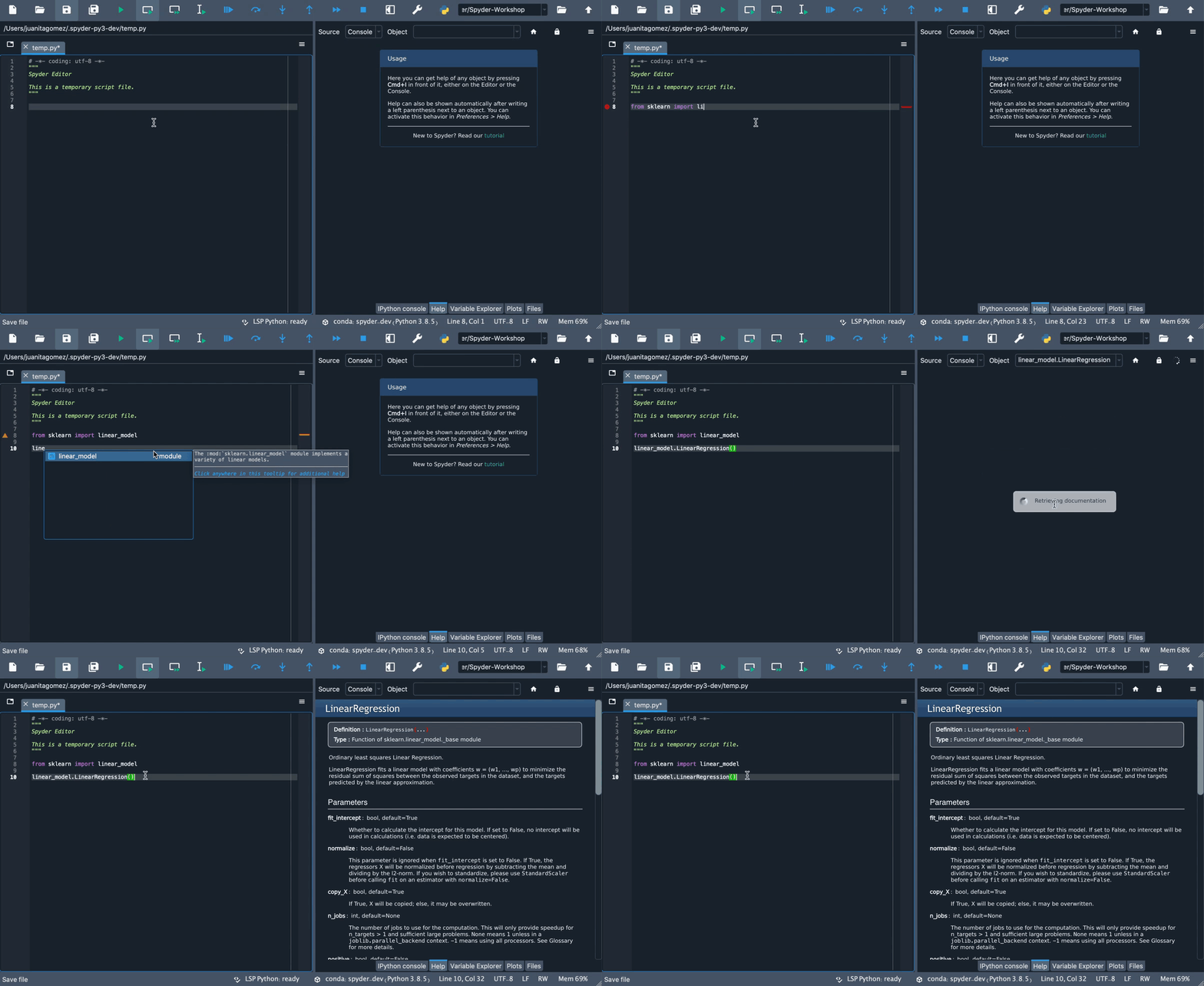
You can also access Spyder’s tutorial from here, which will guide you through some basic steps for using its key features.
Getting help#
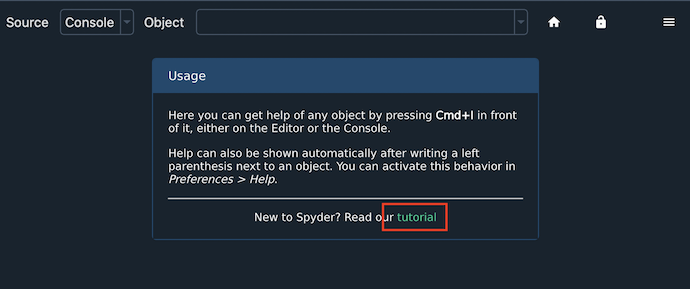
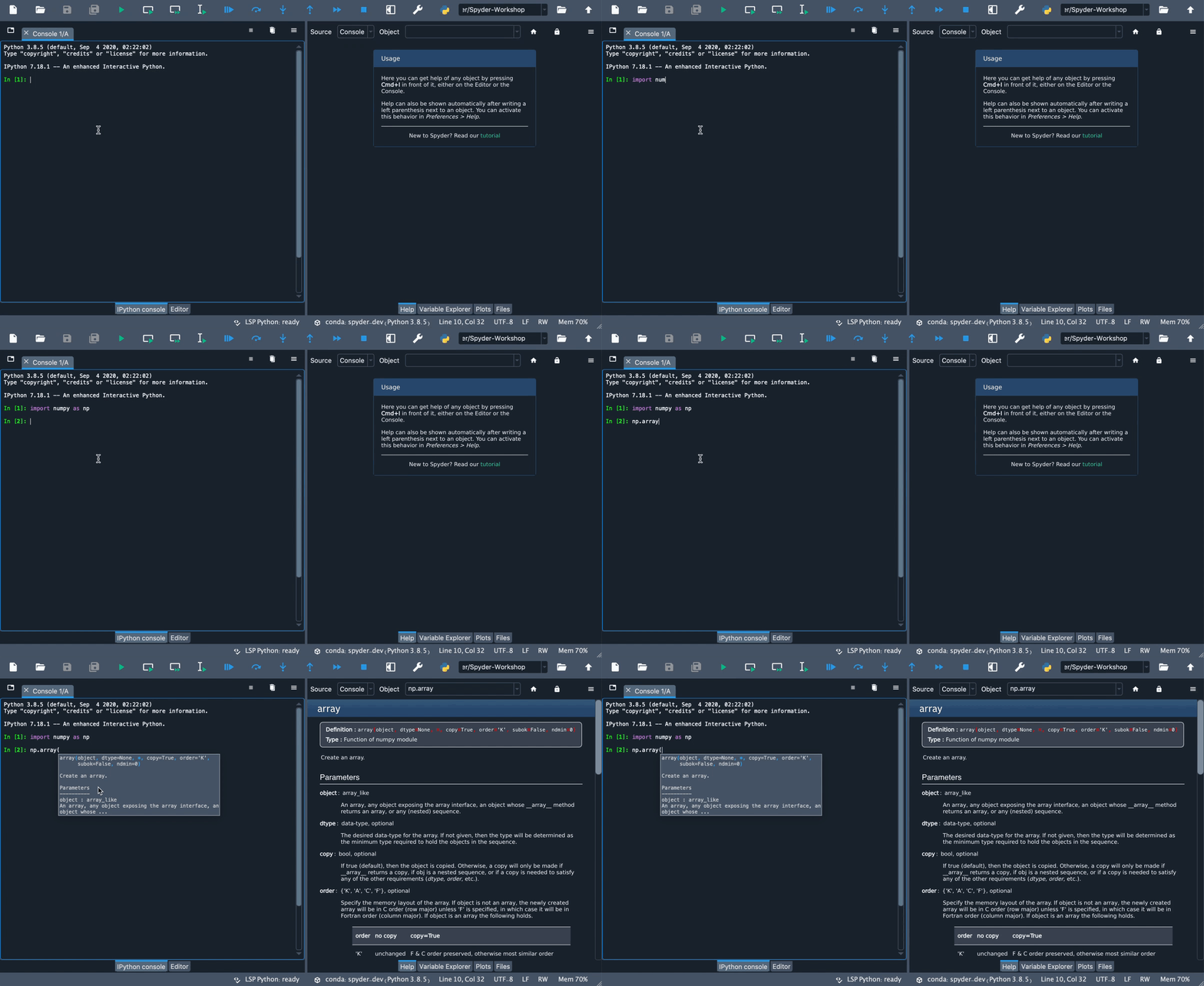
Help can be retrieved both by static analysis of open files in the Editor, or by dynamically inspecting an object in an IPython Console. You can trigger help on demand by pressing the configurable help shortcut (Ctrl-I by default).
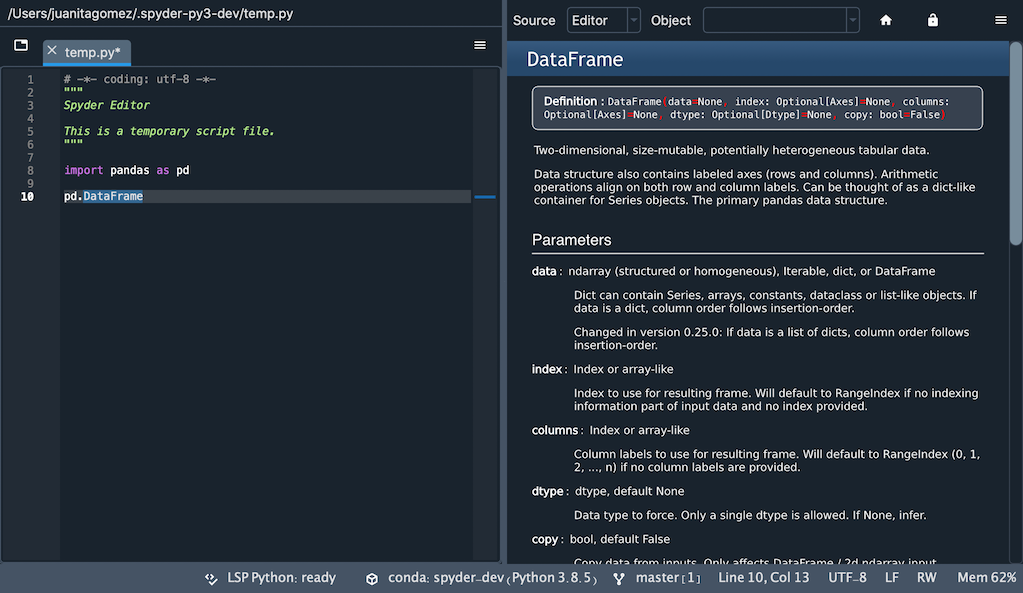
You can also manually enter the object’s name into the Object textbox at the top of the pane, if Console is selected as the Source.
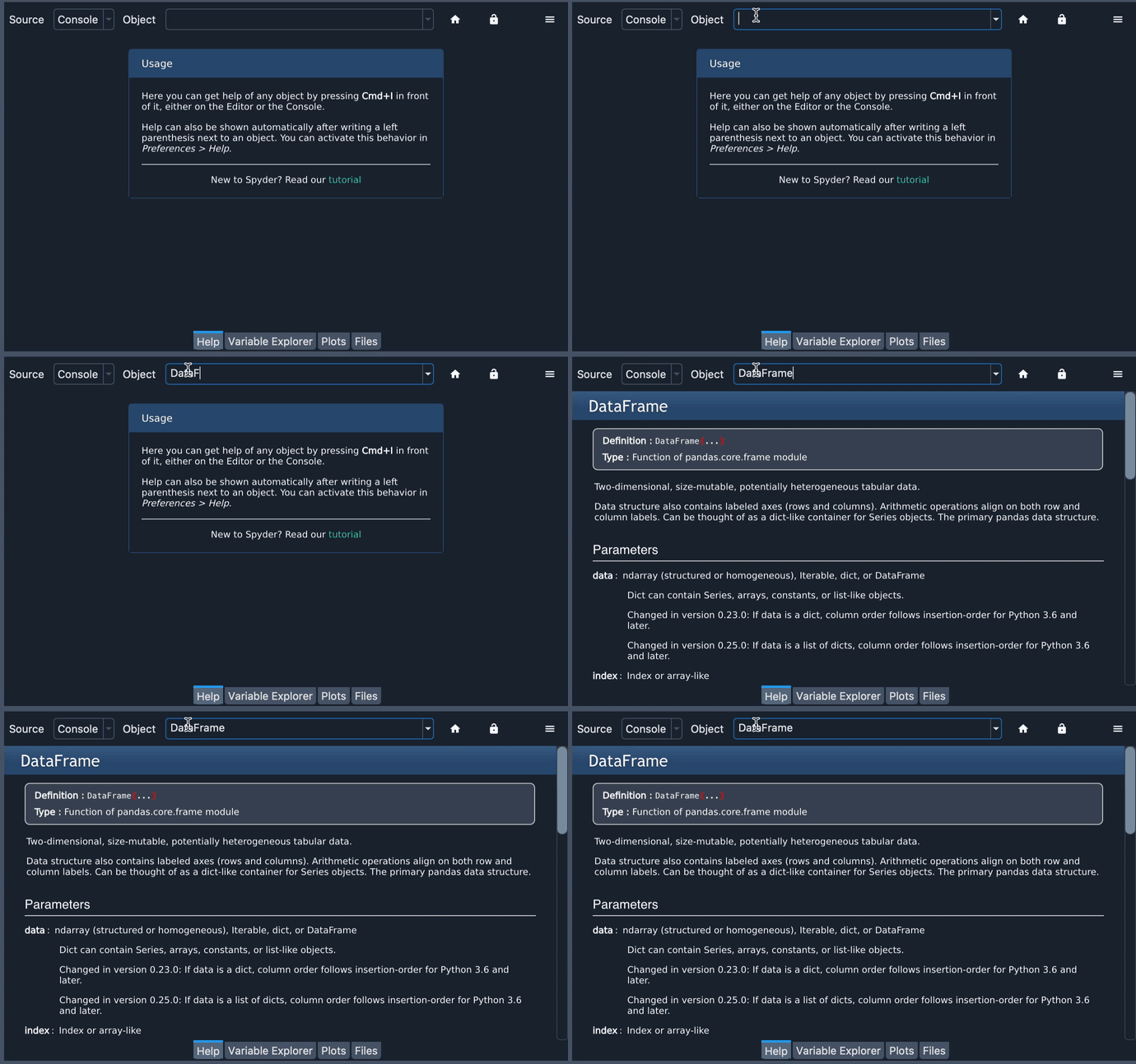
Automatic help can be individually enabled for both the Editor and the Console under .
If enabled, simply typing a left parenthesis (() after a function or method name will show its associated help.
When automatic help is enabled, toggling the lock button on in the top right corner of the Help pane will keep displaying documentation for the present object even if you type the name of another one, until the lock is toggled off again.
Understanding help modes#
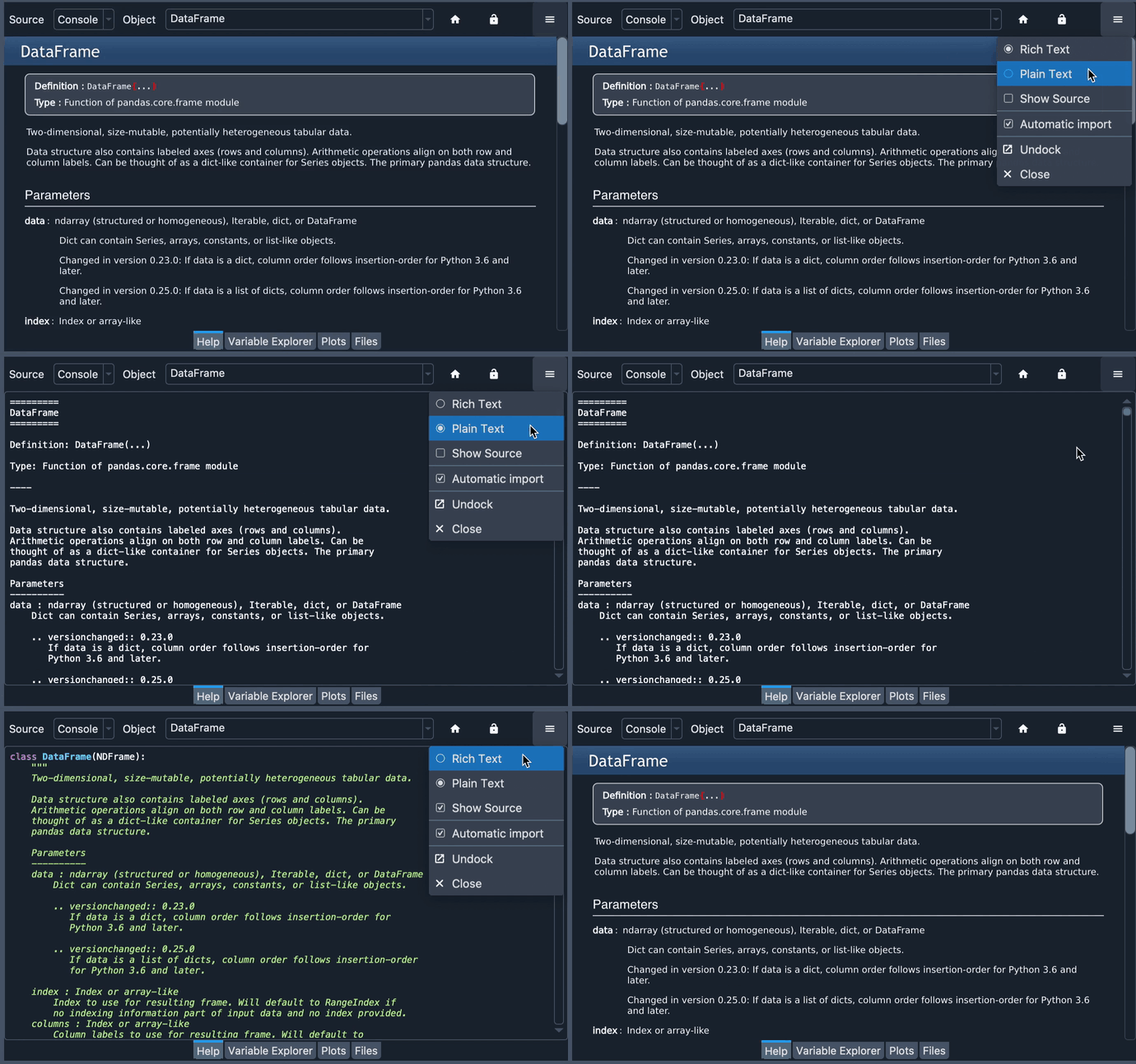
You can use the options menu (“hamburger” icon) in the top right of the Help pane to toggle the help display mode:
Rich Text mode renders the object’s docstrings with Sphinx, as a nicely-formatted page.
Plain Text mode displays the docstring without formatting.
Show Source displays the docstring inline with the source code for the selected object (or the Python portion of it if any, for objects that aren’t pure Python). This can be useful when docstrings are not available or insufficient to document the object.
Getting help by hovering#
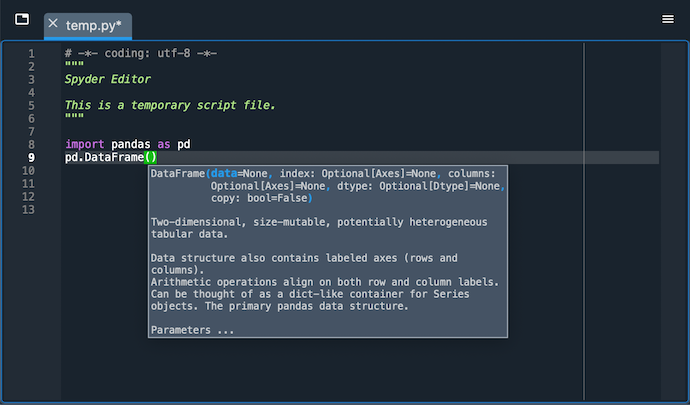
You can also get summary help for objects by hovering over them in the Editor. Clicking the hover popup will open the full documentation in the Help pane.
Control automatic import#
When you get help in the IPython Console for an object that has not been previously imported, it is automatically loaded in Spyder’s own internal interpreter so that documentation can be shown when available. This can be disabled in the Help pane’s top-right options menu (when a Source of Console is selected) so that only documentation from imported objects is displayed.