Ayuda#
Puedes usar el panel de Ayuda para encontrar, renderizar y mostrar la documentación enriquecida para cualquier objeto con una cadena de documentación, incluyendo módulos, clases, funciones y métodos. Esto te permite acceder fácilmente a la documentación directamente desde Spyder, sin tener que interrumpir tu flujo de trabajo.
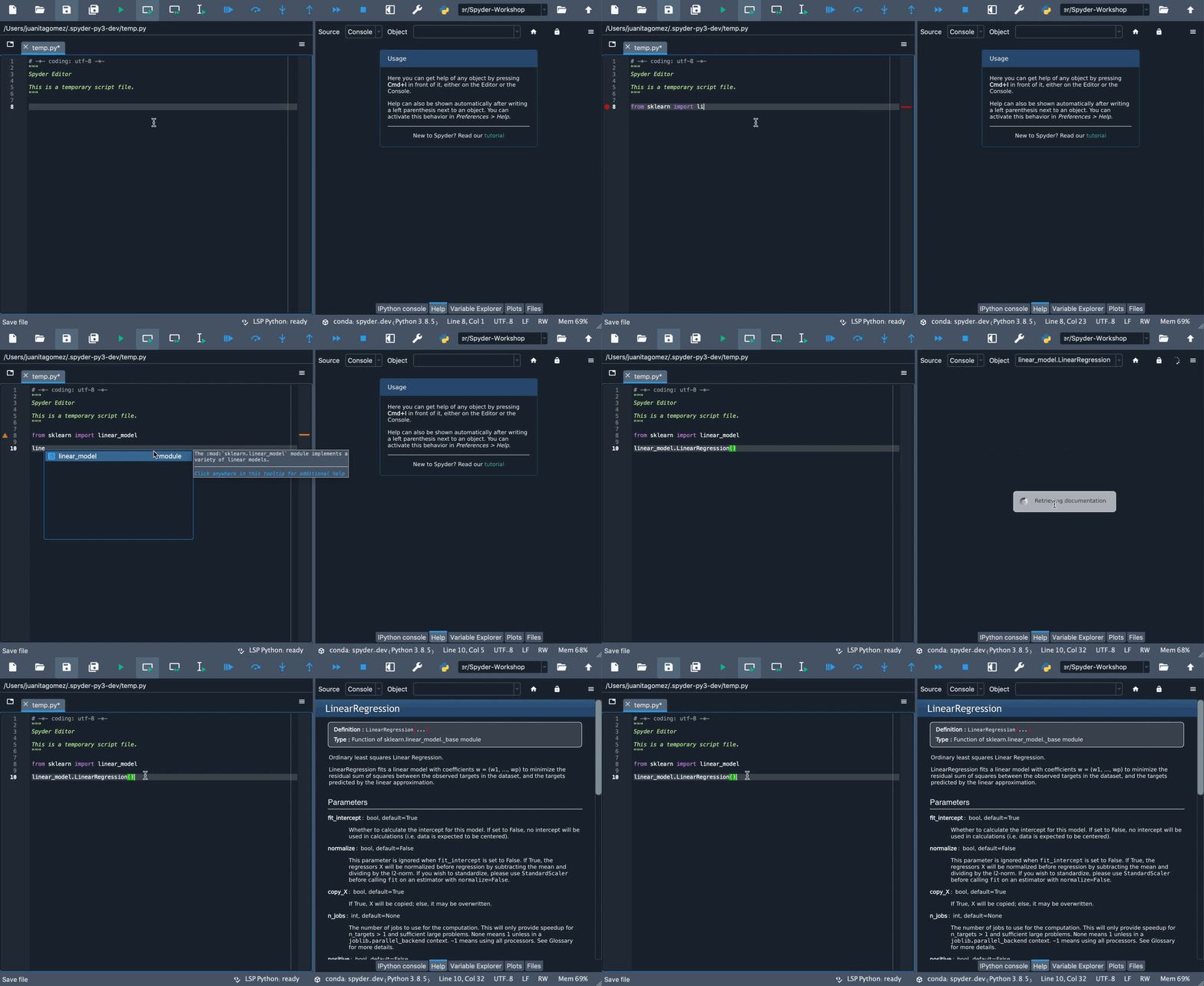
También puedes acceder al tutorial de Spyder desde aquí, que te guiará a través de algunos pasos básicos para usar sus características clave.
Obtener ayuda#
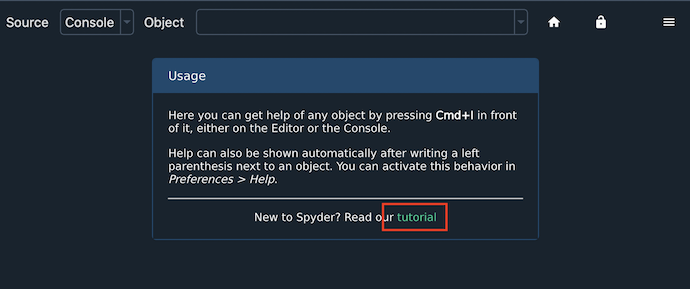
Help can be retrieved both by static analysis of open files in the Editor, or by dynamically inspecting an object in an Terminal de IPython. You can trigger help on demand by pressing the configurable help shortcut (Ctrl-I by default).
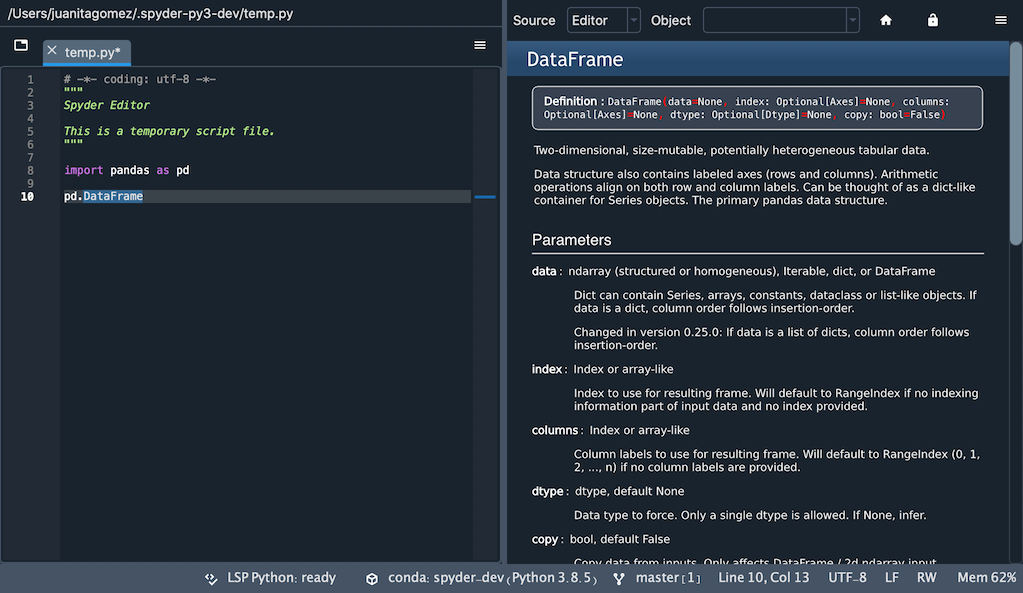
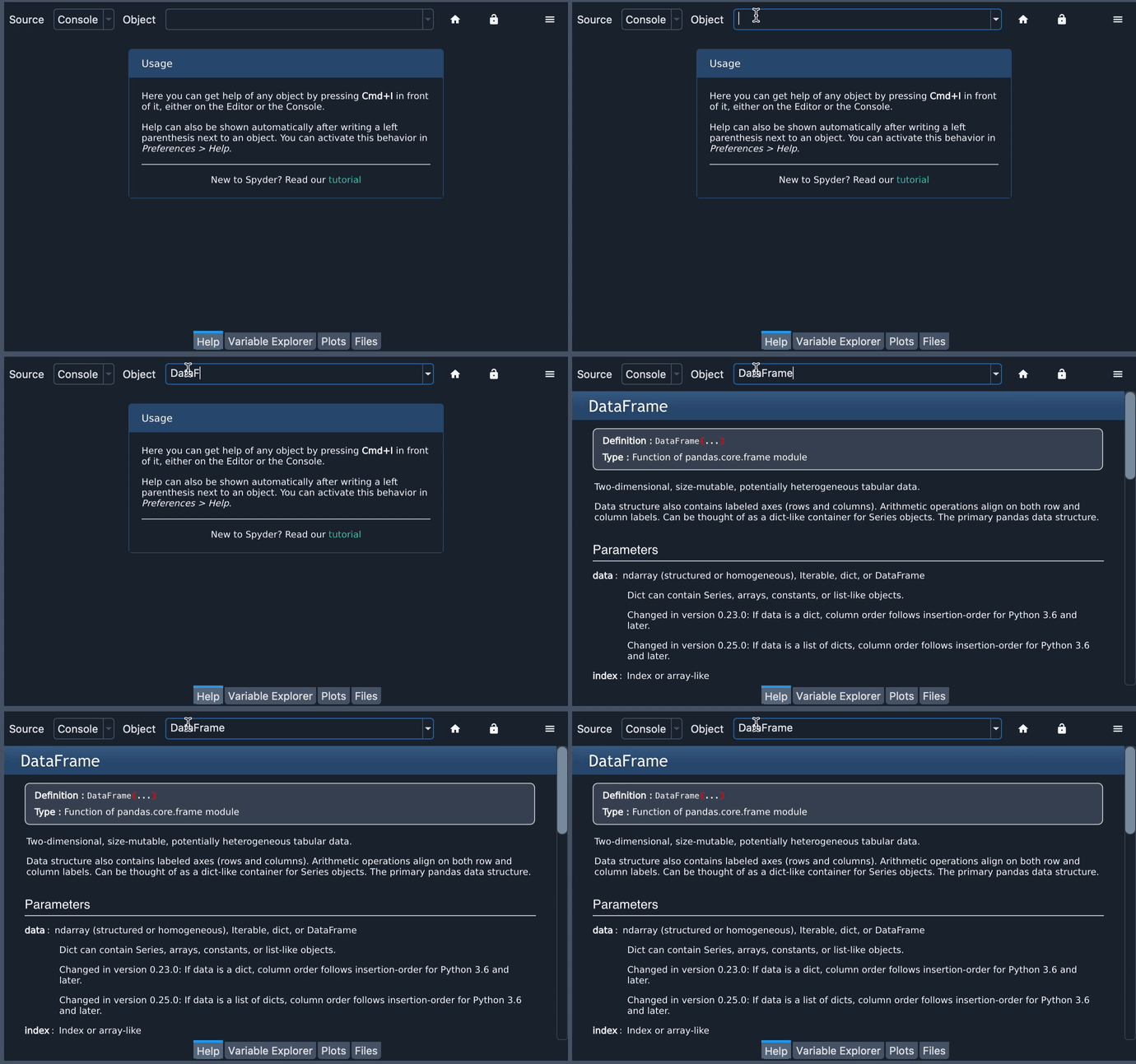
También puedes introducir manualmente el nombre del objeto en el cuadro de texto Objeto en la parte superior del panel, si Terminal es seleccionado como el Origen.
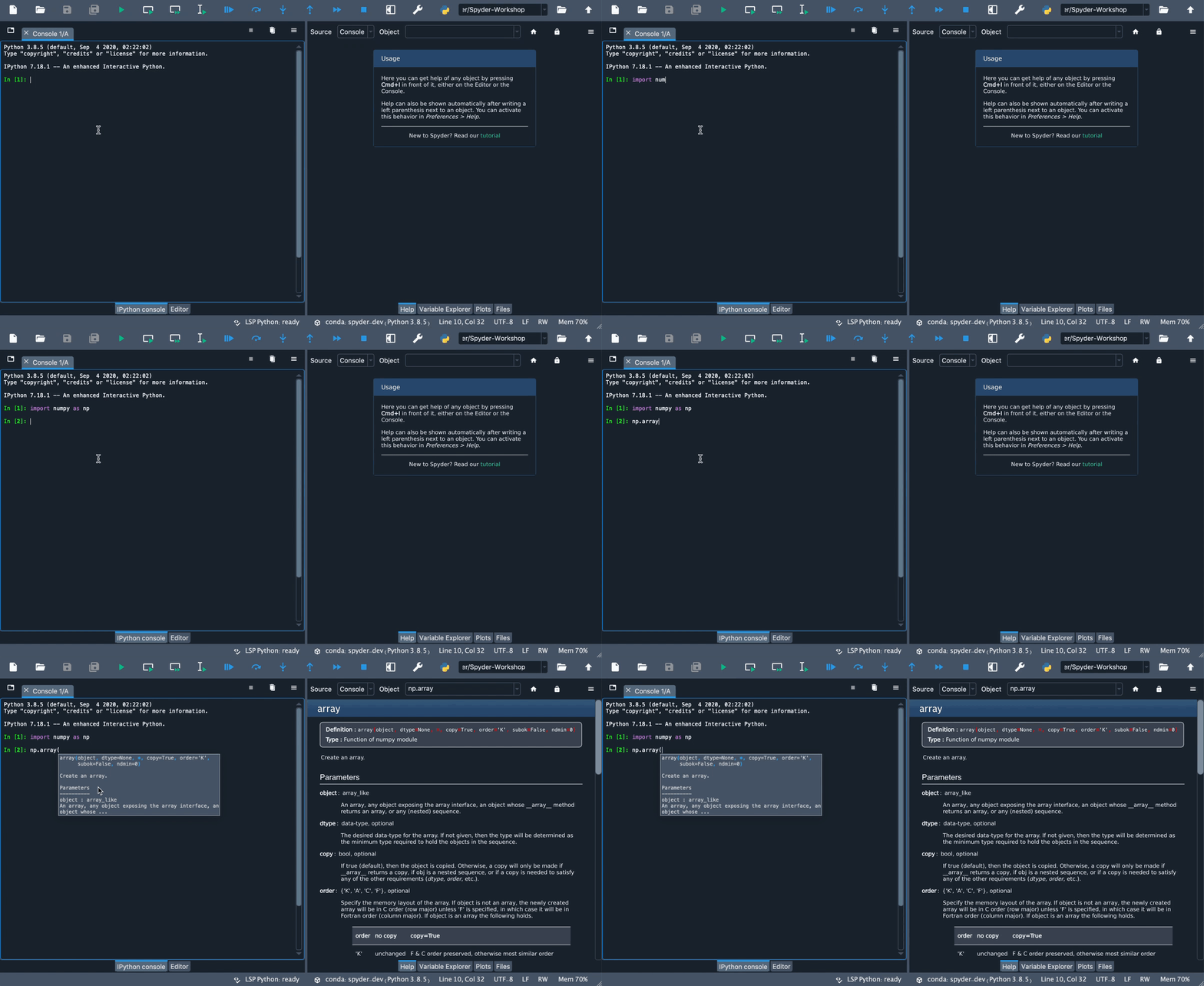
Automatic help can be individually enabled for both the Editor and the Console under .
If enabled, simply typing a left parenthesis (() after a function or method name will show its associated help.
When automatic help is enabled, toggling the lock button on in the top right corner of the Help pane will keep displaying documentation for the present object even if you type the name of another one, until the lock is toggled off again.
Entender los modos de ayuda#
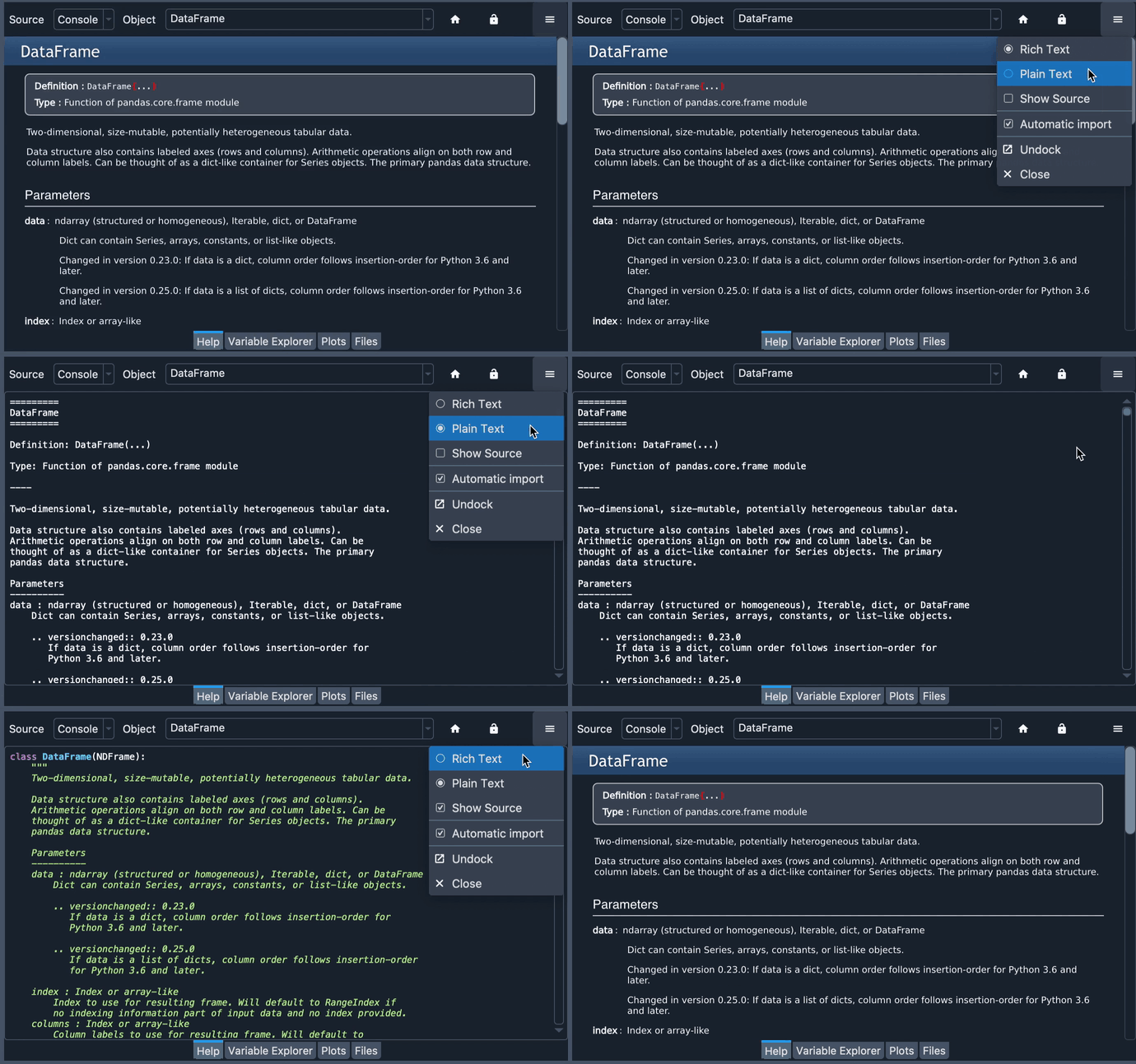
You can use the options menu («hamburger» icon) in the top right of the Help pane to toggle the help display mode:
Rich Text mode renders the object’s docstrings with Sphinx, as a nicely-formatted page.
Plain Text mode displays the docstring without formatting.
Show Source displays the docstring inline with the source code for the selected object (or the Python portion of it if any, for objects that aren’t pure Python). This can be useful when docstrings are not available or insufficient to document the object.
Obtener ayuda al pasar el cursor#
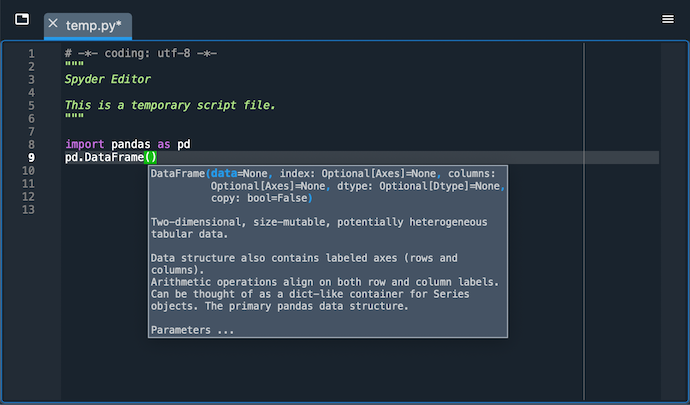
También puedes obtener ayuda resumida para objetos pasando el cursor sobre ellos en el Editor. Al hacer clic en la ventana emergente se abrirá la documentación completa en el panel de Ayuda.
Controlar importación automática#
When you get help in the IPython Console for an object that has not been previously imported, it is automatically loaded in Spyder’s own internal interpreter so that documentation can be shown when available. This can be disabled in the Help pane’s top-right options menu (when a Source of Console is selected) so that only documentation from imported objects is displayed.