
Common Illnesses#
Beyond the general troubleshooting steps, some frequently-reported problems require more specialized solutions.
Errors starting the kernel#
If you receive the message An error occurred while starting the kernel in the IPython Console, Spyder was unable to launch a new Python interpreter in the current working environment to run your code.
There are a number of problems that can cause this, but most can be fixed fairly quickly with a few easy steps.
Spyder-Kernels not installed/incompatible#
Spyder requires a supported version of the spyder-kernels package to be present in the working environment you want to run your console in.
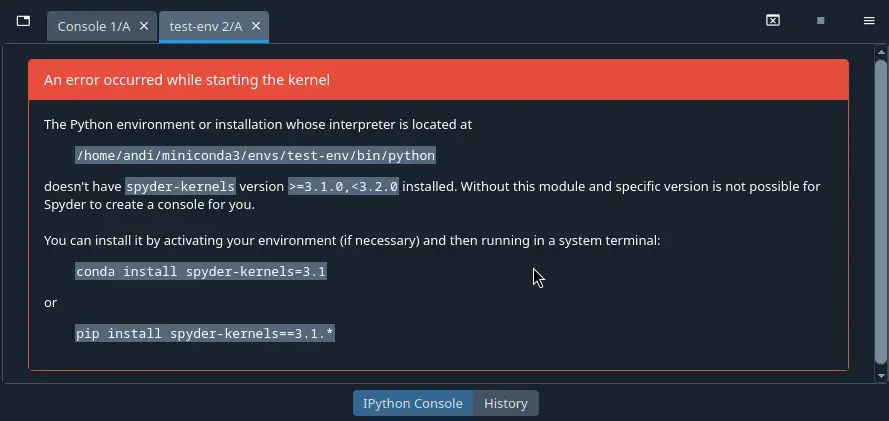
It is included by default in Spyder’s own runtime environment, but if you want to run your code in your own Python environment or installation, you’ll need to make sure it’s installed and updated to the latest version.
To do so, open a system terminal, activate the Conda or virtual environment you want to use Spyder with, and then copy and paste the command Spyder generates for you (the conda command if in a Conda environment, or pip otherwise).
Spyder 6.2+ will offer to update your Spyder-Kernels version automatically, if using Spyder through our recommended Standalone installers.
Issue with another dependency#
If the kernel displays a long error traceback that mentions other packages like ipython, ipykernel, jupyter_client, traitlets or pyzmq, the problem may be an out of date or incompatible version of a dependency package.
To fix this, activate the environment and update the key dependencies.
In a Conda environment:
conda activate ENVIRONMENT-NAME  # Replace with the name of your desired environment
conda update spyder-kernels ipython ipykernel jupyter_client jupyter_core pyzmq traitlets
Otherwise, activate your environment by whatever means you created it, and run:
pip install --upgrade --upgrade-strategy "eager" spyder-kernels ipython ipykernel jupyter_client jupyter_core pyzmq traitlets
Completion/help not working#
To provide code completions, help and real-time analysis in the Editor, Spyder uses the Python LSP Server (PyLSP), an implementation of the same Language Server Protocol specification supported by VSCode, Neovim and other popular editors/IDEs. Most help and completion issues lie outside of Spyder’s control, and are either limitations with PyLSP or the code that is being introspected, but some can be worked around.
Object missing docstring#
If nothing is displayed in the calltip, hover hint or help pane, the object you’re trying to introspect may not have a docstring.
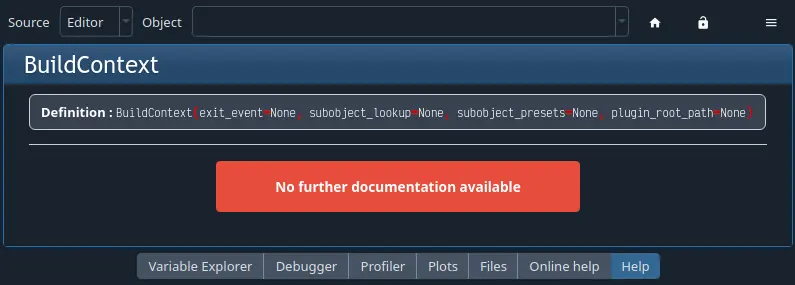
In this case, the only solution is to add one in the source code of the original function, method or class.
Object cannot be found#
Some objects, whether due to being written in C, Cython or another language; generated dynamically at runtime; or being a method of an object you create, cannot be easily found without executing the code.
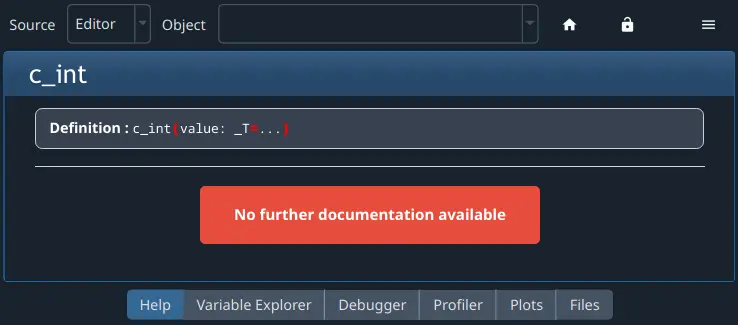
However, once you run your code in the IPython Console, you might be able to get help and completions on the object there.
LSP has stopped working#
Occasionally, especially after using Spyder for a while, code completion, help and analysis may stop working. If this is the case, you can check LSP status with the LSP: Python item in Spyder’s status bar at the bottom of the screen, and restart it by right-clicking it and selecting the Restart Python Language Server item.

Spyder bug/dependency issue#
Given the variety of dependencies involved in making LSP work, an incompatible or out of date version in your environment can result in error messages, incomplete results, or help/analysis not working at all.
To address this, try updating Spyder as described in Basic First Aid.
Plugin Problems#
Plugin does not work at all#
If you have installed a Spyder plugin, but you can’t see it, go to the Panes submenu of the Window menu and select the plugin’s name, which should make it visible if it contains a standalone pane. If you don’t see the plugin there, select the Plugins section under Spyder’s Preferences and see if it is listed there.
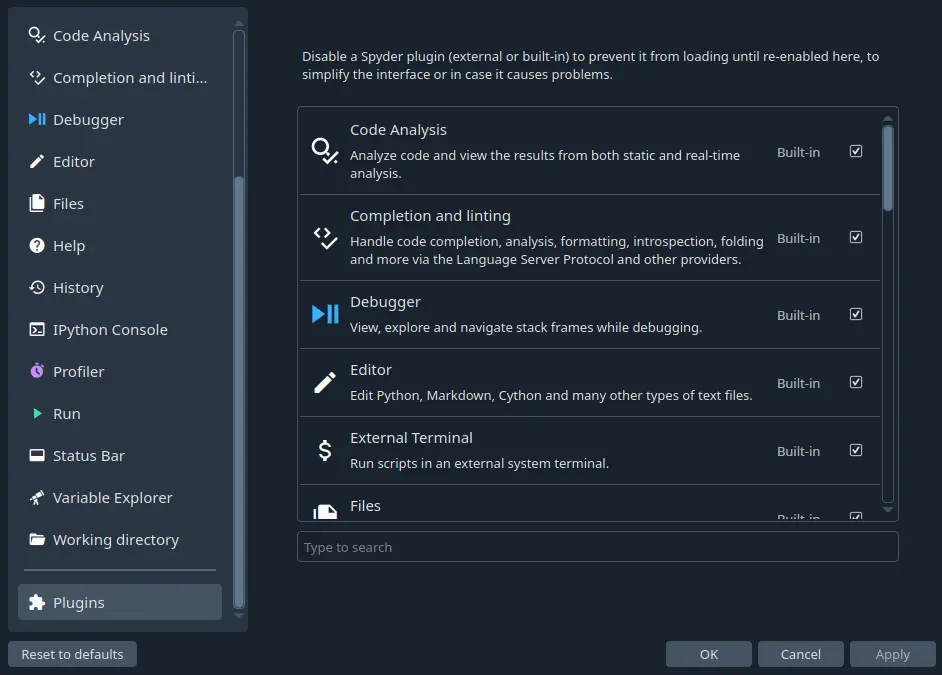
If the plugin with the problem is not listed in the Plugins Preferences section, check that you installed it in the same environment as Spyder.
If you have, then the problem may well be caused by a dependency issue.
Test whether you can import the plug-in manually by opening a Python console in the same environment as Spyder and typing, for instance, import spyder_unittest to test the Spyder-Unittest plug-in; this command should run without errors.
If none of this helps you to resolve the problem, then continue to the next section.
Other issues#
If you get an error which mentions or involves a Spyder plugin, such as spyder-unittest, spyder-terminal or spyder-notebook, or if you encounter any other problem with a Spyder plugin, then the first approach should be to update Spyder and the plugin to their latest versions.
If this doesn’t fix the problem, you should check the plugin’s website or repository to see if it is compatible with your version of Spyder.
Finally, if compatibility doesn’t seem to be the problem, please check those repositories to see if an issue was already opened, and report it there if not.