
Files#
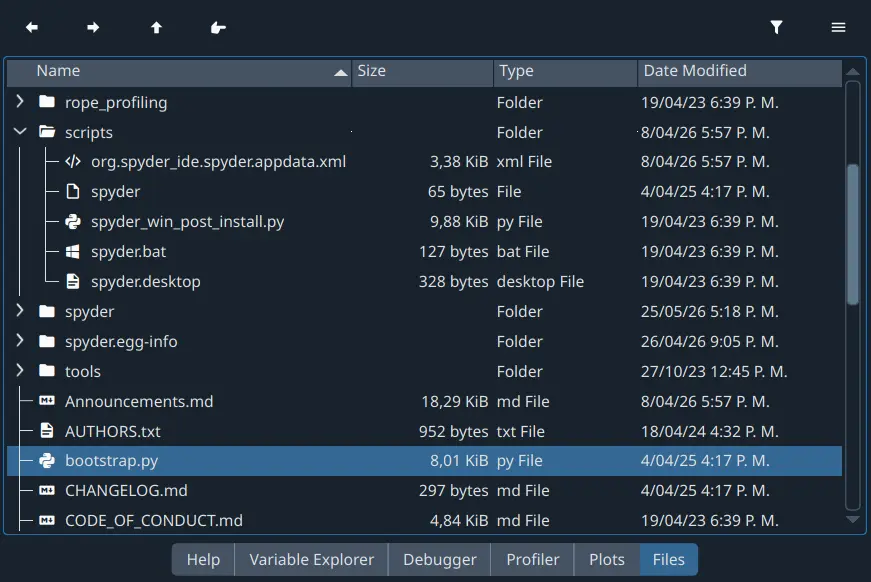
The Files pane is a filesystem and directory browser built right into Spyder. You can view and filter files according to their type and extension, open them with the Editor or an external tool, and perform many common operations.
Note
The Files pane is especially useful when connected to a remote machine via the Remote Connection Manager, as in addition to graphically browsing and managing remote files, it allows you to upload and download files between your computer and the remote host. Most, although not all quite features work similarly on a remote machine as they do locally.
File operations#
You can expand/collapse the folders in the pane to display the files and subdirectories hierarchically. Double-clicking a folder will open it, showing the files inside and making it your working directory. To go back to the previous working directory, or forward if you’ve already gone back, click the forward and back arrows on the pane’s toolbar. The up arrow navigates up a level to the parent directory, while the right-pointing finger goes to the directory of the current file in the Editor.
To open a file in the Editor from the Files pane, double-click its name. Files can also be opened in an external editor, configured via Spyder’s File associations preferences. The context menu when right-clicking a file allows you to access a number of functions, including running scripts; creating, renaming, moving, deleting files; and opening them in your computer’s file manager (Show in folder); along with basic Git operations.
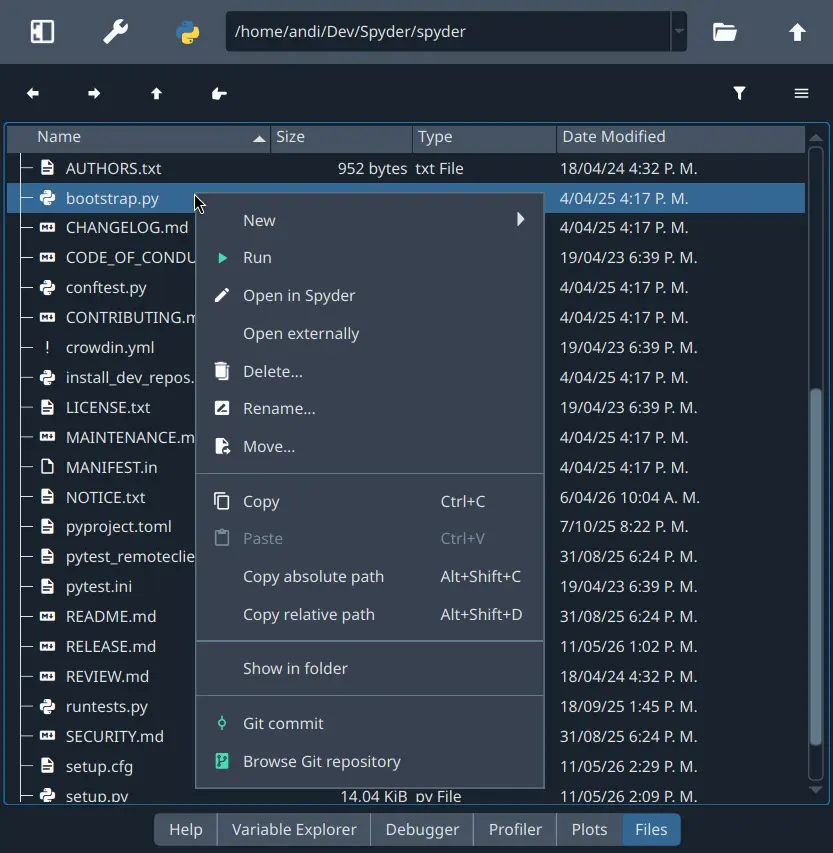
You can also copy and paste one or several files to and from the pane, and copy their absolute or relative paths to the clipboard as text. If copying the paths for multiple files, they will be automatically formatted so you can paste them directly into a Python list.
Version control support#
The Files pane context menu allows you to perform basic operations with the Git distributed version control system when right-clicking a file, like committing your changes and browsing the repository a given file or folder belongs to. This is particularly useful when you’re working in Spyder Projects.
Options menu#
The options (“hamburger”) menu in the top right of the Files pane offers several ways to customize how your files are displayed.
By default, the pane displays the contents of your working directory without filtering. However, it can filter the list to show only files matching the patterns set under Edit filter settings, if you toggle them on via the Filter filenames button to the right of the pane toolbar.
You can also activate or deactivate the Show hidden files option, which will display files that are invisible by default in your operating system.
Additionally, you can show or hide the Type, Size and Date Modified columns using the corresponding menu options.
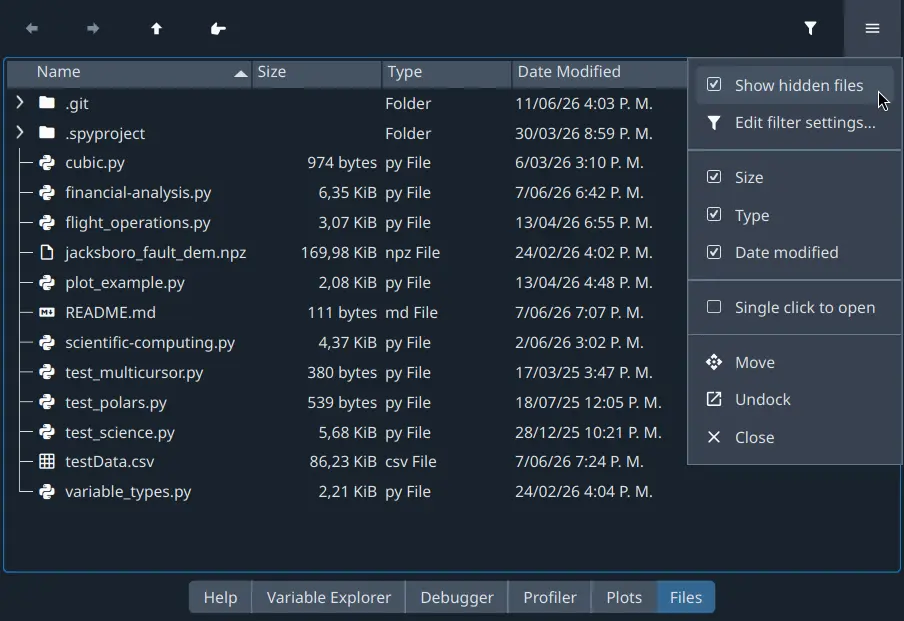
Finally, the menu also gives you the option to open files and directories with a single-click (instead of a double-click) to suit your preference.
File associations#
Files allows you to associate different external applications with specific file extensions they can open. Under the File associations tab of the Files pane in Spyder’s Preferences, you can add file types and set the external program used to open each of them by default.
Once you’ve set this up, files will automatically launch in the associated application when opened from Spyder’s Files pane. Additionally, when you right-click a file, you will find an Open with… option that will allow you to select from the applications associated with this extension.